How to Use CapCut AI Tools: A Beginner’s Guide for 2026 – CapCut makes video editing simple. In 2026, its AI tools help beginners create polished videos fast. You do not need special skills. Instead, you can start with basic steps and get great results. This guide shows you how to use the main CapCut AI tools. It covers current features from trusted sources. You will learn step by step. Then you can make content for TikTok, Reels, or YouTube.
First, download CapCut. It works on mobile, desktop, and web. Go to the official site or your app store. Next, create a free account. After that, open a new project. Import your clips or photos. Now you are ready for the AI tools. Before getting started, explore the most useful CapCut AI features available today.
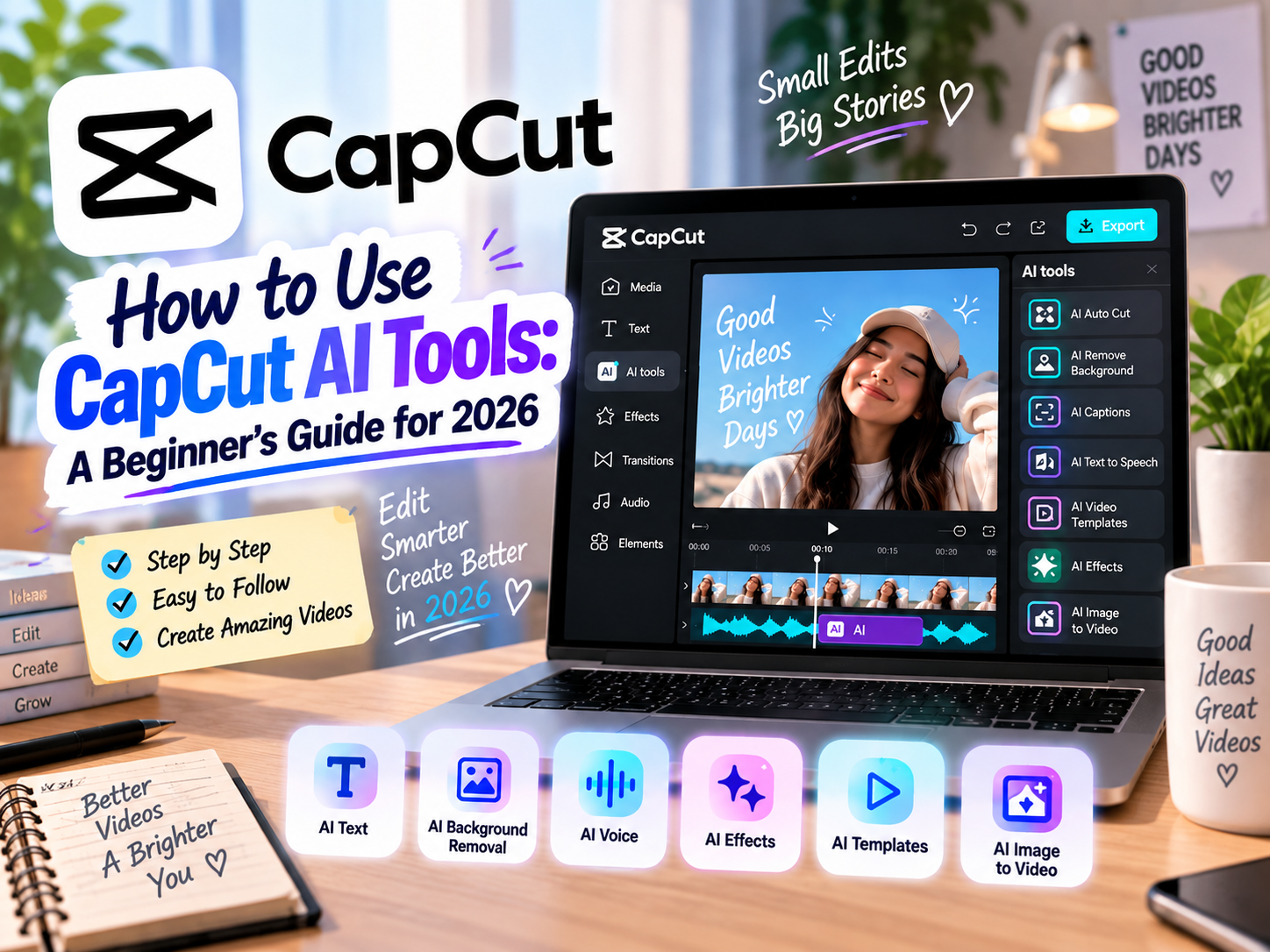
What CapCut AI Tools Can Do
CapCut AI tools speed up editing. For example, they add captions automatically. They also remove backgrounds. In addition, they turn text into full videos. Some tools generate voices or avatars. Others create short clips from long videos. Many features work for free. However, advanced ones may need Pro or credits. Always check your plan.
These tools help beginners a lot. You save time. Therefore, you focus on ideas. As a result, your videos look better.
Key CapCut AI Tools in 2026
Here is a simple table of the top tools. It shows what each one does and who it helps most.
| Tool Name | What It Does | Best For | Difficulty |
|---|---|---|---|
| Auto Captions | Turns speech into timed text | Social media videos | Easy |
| Background Removal | Cuts out people or objects | Talking-head clips | Easy |
| AI Story Maker / Script-to-Video | Builds video from text or idea | Faceless content | Easy |
| AI Avatars | Adds talking digital presenters | Explainers and ads | Easy |
| Text to Speech | Creates natural voiceovers | Tutorials | Easy |
| Auto Cut / AI Clipper | Cuts and arranges clips smartly | Montages and highlights | Easy |
| AI Video Generator (Seedance) | Makes new video from text or image | Creative ads | Medium |
This table helps you pick the right tool. Next, we look at how to use each one.
How to Use Auto Captions
Auto Captions is one of the easiest tools. First, open your project. Select the video clip. Then tap Text and choose Auto Captions. CapCut listens to the audio. After that, it adds synced subtitles. Review the text. Fix any wrong words if needed. Finally, style the captions with fonts and colors. This tool works well for clear speech. In addition, it boosts views on social platforms.
How to Use Background Removal
Background removal is quick. Select your clip. Go to Cutout or Remove Background. CapCut detects the subject. Then it removes the background. You can add a new one right away. This works without a green screen. Edges look clean on talking-head videos. Therefore, it is perfect for product shots or vlogs. If the result needs work, adjust the edges manually.
How to Use AI Story Maker or Script-to-Video
This tool turns ideas into videos. First, find AI Story Maker or AI Video Maker in the tools section. Type a short idea or paste a script. Next, choose a style, voice, and aspect ratio. CapCut builds scenes with stock clips, voiceover, and captions. Then review the draft. Edit any parts you want to change. Finally, export or polish it more. It creates a strong starting point. However, add your own touch for the best look.
How to Use AI Avatars
AI Avatars let you stay off camera. Open the AI tools or Elements section. Choose an avatar or create one from a photo. Then add your script. The avatar speaks the words with lip sync. You can change the voice and style. This works great for educational videos. In addition, it helps with faceless content. Preview the result. Adjust timing if needed.
How to Use Text to Speech
Text to Speech is simple. Add text to your project. Select the text layer. Then choose Text to Speech or AI Voice. Pick a voice from many options. CapCut generates the audio. Place it on the timeline. Match it with your visuals. This tool offers natural voices. Therefore, it works well for explainers. You can also clone a voice in some versions with a short sample.
How to Use Auto Cut or AI Clipper
Auto Cut speeds up assembly. Import several clips. Then open Auto Cut or AI tools. Choose beat sync for music or speech pauses for talking videos. CapCut analyzes the material. It cuts and arranges clips automatically. Review the sequence. Trim or swap parts as needed. This tool is ideal for montages. As a result, you get rhythm-based edits fast.
How to Use AI Video Generators like Seedance
Newer tools like Seedance create original video. On desktop or web, open AI Video. Enter a text prompt or upload an image. Select the model, such as Seedance 2.5. Set duration and ratio. Generate the clip. You can extend scenes or edit details later. These tools produce longer clips than before. However, they often use credits. Start with simple prompts for best results.
Extra Tips for Beginners in 2026
Always set the aspect ratio first. Choose 9:16 for short videos. Next, keep text in the safe center area. In addition, lower music volume under speech. Test free tools before upgrading. Update the app often for new AI features. Finally, export at 1080p for most platforms. Check for watermarks on free plans.
Practice with short projects. Start with Auto Captions and Background Removal. Then try Script-to-Video. Over time, you will feel confident. CapCut AI tools keep improving. Therefore, beginners can create professional videos easily.
In summary, CapCut AI tools make editing fun and fast. Follow these steps and you will see results soon. Download the app today and start creating. Your next video can look great with just a few taps.