How to Automate Meeting Notes with Notion AI in 2026 – Taking meeting notes by hand is hard. You miss key points. You type instead of listen. Then you spend more time cleaning them up later.
Thankfully, Notion AI Meeting Notes changes that. In 2026, this built-in tool captures audio, makes a transcript, and builds a clear summary with action items. All of it lands right inside your Notion workspace. As a result, you stay present in the conversation. Moreover, your team gets organized notes without extra work.
This guide shows you exactly how to set it up and use it. We use official Notion help pages and product updates for every step.
Why Automate Meeting Notes in 2026?
Meetings fill most workdays. Without good notes, decisions get lost. Action items slip.
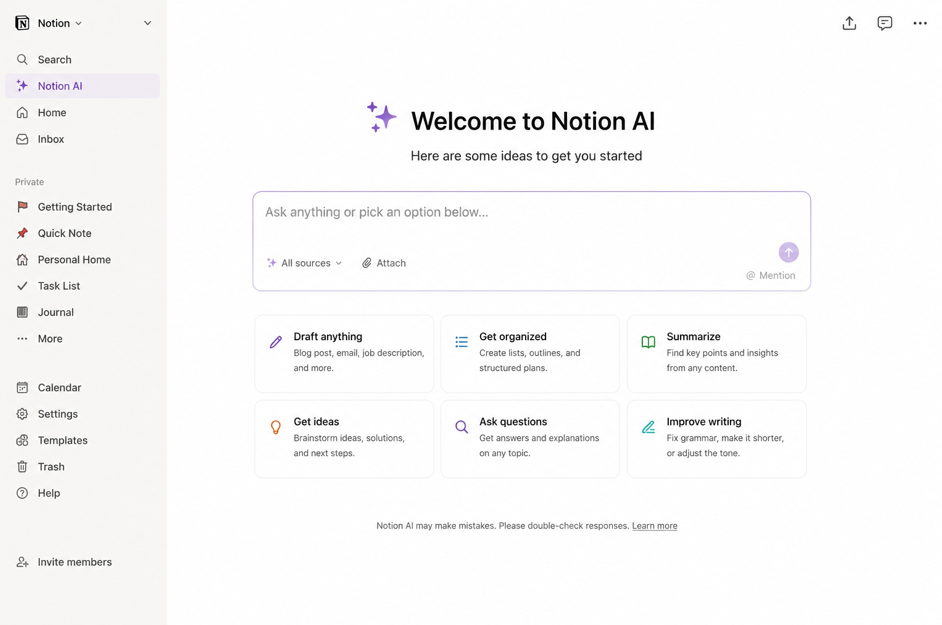
Notion AI Meeting Notes solves this. First, it records your microphone and system audio. Next, it creates a live transcript. Then, after the meeting ends, it builds a summary with key points and tasks. In addition, everything stays searchable inside Notion.
You no longer jump between apps. Therefore, follow-ups happen faster. Teams on Business or Enterprise plans can use it today. It also works with Zoom, Google Meet, and Microsoft Teams because it captures system audio. No bots join the call.
What You Need Before You Start
Check a few things first. You need a Business or Enterprise plan. Notion AI must be turned on. Also, use the desktop app version 4.7.0 or higher for the best results. On Mac, you need macOS 13 or later.
The desktop app captures both your mic and system audio. The browser version only hears your mic. Therefore, the app works better for video calls. Finally, grant screen and system audio permissions when Notion asks.
Step 1: Add AI Meeting Notes to a Page
- Open the Notion desktop app. Go to any page. Then type
/meetand choose AI Meeting Notes. - A new block appears at the top. You can also start from your Home page or from Notion Calendar. In addition, you can add the block to database templates. This way, every recurring meeting page is ready to go.
- Write a short agenda under the Notes section before the call starts. Notion AI reads those notes later. As a result, the summary becomes more useful.
Step 2: Get Consent and Start Recording
- Always ask everyone for permission. Notion reminds you to do this.
- You can copy a consent message and paste it in the chat. You can also play an audio message through your speakers. Or you can simply say the words out loud. Some workspaces force the audio message to play automatically.
- Once consent is clear, click Start transcribing. Speak normally. Notion writes the transcript in real time. Speaker labels appear in many one-on-one calls. Citations link summary points back to the exact words.
- If you need a break, pause and resume later. When the meeting ends, click Stop. Notion then builds the summary. Note that you need at least one minute of audio for a summary.
Step 3: Customize Your Summaries
- Not every meeting is the same. Therefore, Notion lets you choose how the summary looks.
- Click Instructions at the bottom of the block. Pick Auto, Sales, Stand-up, Team Meeting, or another built-in style. In March 2026, Notion added custom instructions. You can create your own template that lists exactly what you want: decisions, owners, deadlines, risks, and more.
- Set one style as your default. Then every new meeting uses it. After the summary appears, you can still click Retry summary if you change the instructions.
Step 4: Connect Calendar and Automate Sharing
- Link Notion Calendar for even smoother flow. Meeting notes can open automatically when a calendar event starts. You can also set a default meetings database. New notes go straight there.
- Turn on auto-share if you want. Notes created from calendar events then open for internal participants. Of course, you can still change sharing by hand later.
- After the meeting, Notion Agent can turn action items into real tasks with owners and due dates. You can also ask Notion AI questions such as “What did we decide about the launch date?” The answers point back to the original notes.
Step 5: Upload Past Recordings
- Missed a live session? No problem. Open a Meeting Notes block. Click the settings icon. Choose Upload audio.
- Notion accepts AAC, M4A, MP3, and WAV files. It then builds the same transcript and summary. This helps when you record on another device.
Best Practices for Better Results
- Write the agenda first. Tag people with @ mentions during the call. Those tags help the AI create clear action items.
- Keep all notes in one database. Link them to projects with Relation properties. This way, decisions stay connected to the work.
- Finally, review the summary soon after the meeting. Edit any unclear parts while the talk is still fresh.
Privacy and Security Notes
Notion does not train its models on your meeting data. Transcripts can be set to delete after a chosen time on Enterprise plans. Consent tools sit inside the product. Encryption protects data in transit. You decide who sees each page.
Common Questions
- Does it work with headphones? Yes, on the desktop app, because system audio is captured.
- How fast is the summary? It appears right after you stop recording.
- Which languages work? English and many others, with more in beta.
- Can I use it for in-person talks? Yes. The browser or mobile app can record the room mic.
Read more: 5 Proven AI Writing Workflows That Save 20 Hours Weekly
Start Automating Today
Notion AI Meeting Notes in 2026 removes the note-taking burden. First, type /meet. Next, get consent and start. Then let the AI write the transcript and summary. Finally, turn action items into real work inside the same workspace.
Teams save hours every week. Conversations stay focused. Follow-ups happen on time.
Open Notion now. Create your first AI Meeting Notes block. You will wonder how you ever worked without it.