CapCut AI Features: Edit Videos Fast with Auto-Captions – Creating engaging videos no longer takes hours of tedious work. CapCut’s AI tools, especially its auto-captions feature, let you edit faster and reach more viewers. In this guide, you will learn how CapCut’s AI auto-captions work, why they matter, and how to use them step by step. You will also discover other useful AI features that pair well with captions.
Why Auto-Captions Matter in 2026
Most people watch short videos on mute. Studies and creator experience show that captions keep viewers watching longer. They also make content accessible for people with hearing differences and help non-native speakers follow along. As a result, videos with clear captions often perform better on TikTok, Instagram Reels, YouTube Shorts, and other platforms.
Moreover, manual captioning is slow and error-prone. CapCut solves this problem with AI that listens to your audio and turns speech into text almost instantly. Therefore, you save time while still producing professional-looking results.
How CapCut’s AI Auto-Captions Work
CapCut uses advanced speech recognition. First, the AI analyzes the audio track. Next, it converts spoken words into text. Then, it automatically times each caption so the words appear exactly when they are spoken. Finally, you can edit, style, and polish the result.
Key strengths include:
- High accuracy on clear audio
- Support for multiple languages
- Automatic detection and handling of filler words such as “um” and “uh”
- Easy customization of fonts, colors, sizes, positions, and animations
- Bilingual caption options in many cases
In addition, CapCut works on mobile, desktop, and the web, so you can edit wherever you are.
Step-by-Step: Add Auto-Captions in CapCut
Follow these simple steps to generate captions quickly.
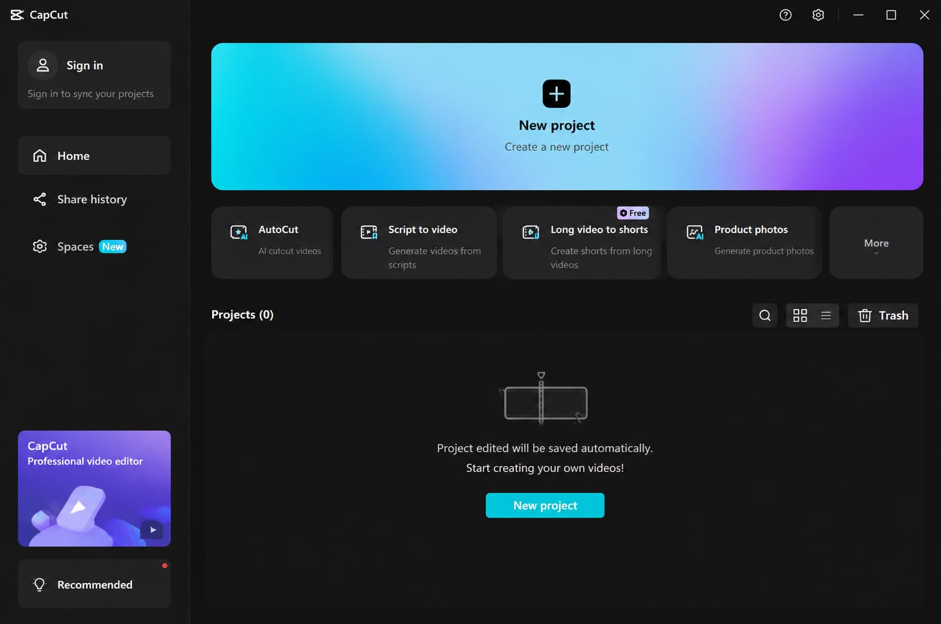
- Open CapCut and start a project.
Download the free app or use the online editor. Then create a new video project and import your clip. - Select the Auto Captions tool.
Go to the Text or Subtitles menu. Choose “Auto Captions” or “Automatic Captions.” Select the language spoken in your video. - Generate the captions.
Click Generate. CapCut’s AI processes the audio in seconds (or a short time depending on video length). Captions appear on the timeline, already synchronized. - Edit and refine.
Tap any caption to correct names, slang, or small errors. Split long lines, adjust timing by dragging edges, or delete unnecessary parts. Because the AI is strong but not perfect, a quick proofread always helps. - Style the captions.
Apply fonts, colors, backgrounds, shadows, or animations. You can highlight keywords for extra impact. Choose templates for a fast professional look or customize everything yourself. - Export and share.
Export in the resolution you need (often 1080p for social media). Share directly to platforms or download the file.
These steps turn a raw video into a polished, captioned piece in minutes instead of hours.
Benefits of Using CapCut Auto-Captions
- First, you save significant time. What once took 30–60 minutes of typing can now finish in under five minutes plus light editing.
- Second, accessibility improves. Captions help deaf or hard-of-hearing viewers and anyone watching without sound.
- Third, engagement rises. Viewers stay longer when they can read along. Consequently, algorithms often reward captioned videos with better reach.
- Fourth, global audiences become easier to reach. You can generate captions in different languages or use translation features to expand your content.
- Finally, the feature sits inside a full video editor. You never need to jump between apps for cutting, effects, music, or captions.
Other CapCut AI Features That Speed Up Editing
Auto-captions work even better when combined with CapCut’s wider AI toolkit. Here are some useful companions:
- AI background removal and people remover – Clean up visuals so captions stay the focus.
- Text-to-speech and AI voice – Create narration or voiceovers that pair perfectly with captions.
- Noise reduction and voice enhancer – Clean audio first for higher caption accuracy.
- Auto reframe – Resize videos for different platforms while keeping the subject centered.
- Remove filler words – Clean speech before or after captioning.
- AI writer and script-to-video – Generate ideas or full drafts faster.
- Stabilize, color adjust, and upscale tools – Improve overall quality quickly.
Together, these tools let beginners create content that looks professional and let experienced editors move much faster.
Tips for Best Results with Auto-Captions
- Clear audio produces the best accuracy. Therefore, record in a quiet space or use CapCut’s noise tools first.
- Always choose the correct language before generating. After generation, proofread carefully—especially proper names, brand terms, and technical words.
- Keep captions short. Aim for one or two lines so viewers can read easily while watching the action.
- Use high-contrast colors and readable fonts. Highlight important words with bold or color changes for emphasis.
- Test your video on mute. If the captions alone make sense, you have done well.
- Finally, experiment with styles that match your brand or the platform’s trends. Consistent styling helps viewers recognize your content.
Read more: AI Video Generators Guide for Faceless YouTube in 2026
Common Questions About CapCut Auto-Captions
Is the feature free? CapCut offers automatic captions as part of its free tools for many users. Some advanced options or heavy use may involve Pro features depending on the version and region, so check the current app for details.
How accurate is it? Accuracy is high with clear speech. Background noise, heavy accents, or fast talking may require more manual fixes.
Can I translate captions? Yes. CapCut supports translation into various languages, helping you reach international audiences.
Does it work on long videos? Yes, though processing time grows with length. For very long content, consider breaking the project into sections.
Conclusion: Faster Edits, Stronger Videos
CapCut’s AI auto-captions feature removes one of the biggest time drains in video editing. By analyzing audio and generating synchronized, editable text in moments, it lets you focus on creativity instead of typing. When you combine captions with CapCut’s other AI tools—noise reduction, background removal, text-to-speech, and more—you can produce polished, accessible videos far more quickly.
Whether you create short social clips, educational content, or marketing videos, these tools help you work smarter. Start with a clear recording, generate captions, make a few smart edits, and export. Your next video can look more professional and reach more people with far less effort.
Download CapCut or open the online editor today and try auto-captions on your next project. You will see how much faster editing can become.